

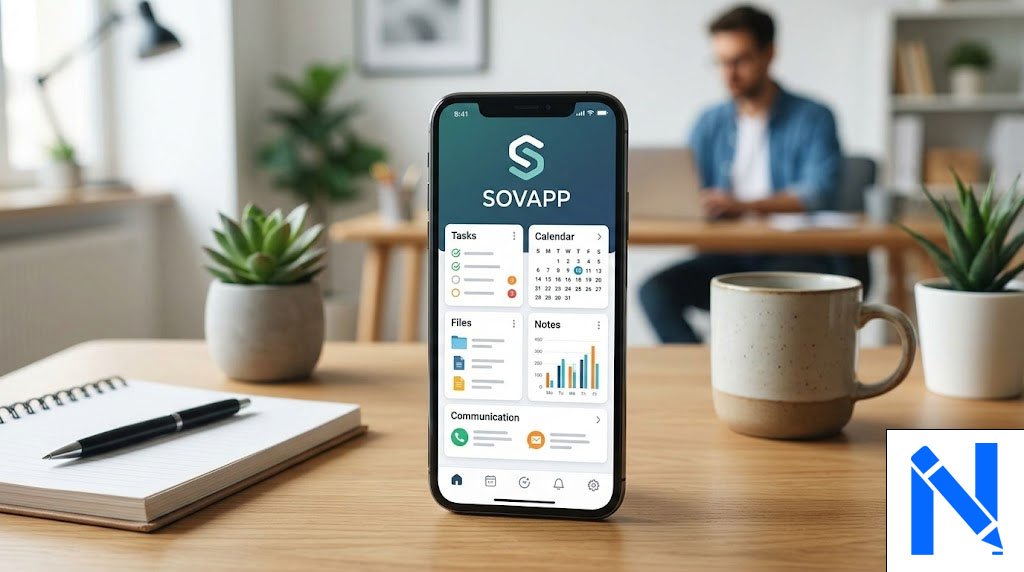
Sovapp is an all-in-one productivity app that helps you manage your tasks, communicate with others, store files, and plan your schedule all in one place. If you are new to this app and want to know how to get started, this guide will walk you through everything step by step. By the end, you will feel confident using Sovapp in your daily life.
What Is Sovapp?
Sovapp is a digital workspace designed for people who want to stay organized without juggling multiple apps. Instead of using one app for tasks, another for messages, and a third for file storage, Sovapp brings all of these tools together under one roof.
The app works on mobile devices and gives users a clean, easy-to-use dashboard. It is built for students, freelancers, professionals, and anyone who wants a simpler way to manage their daily work.
How to Download and Set Up Sovapp
Getting started with Sovapp is quick and does not require any technical skills. You can find the app on your device’s official app store, download it, and open it right away.
Once you open the app, create a free account using your email address. The setup process takes only a few minutes. After that, you will land on your personal dashboard where all the main tools are waiting for you.
How to Set Up Your Profile and Dashboard
After you create your account, the first thing to do is set up your profile. Add your name, a profile photo, and any other details you want. This helps if you plan to use Sovapp with a team or group.
Next, take a few minutes to customize your dashboard. You can choose which tools appear first so that the things you use most are always easy to reach. Sovapp also offers helpful tips for new users right inside the app, so do not skip those when you see them.
How to Use the Task Management Feature
Task management is one of the strongest parts of Sovapp. You can create tasks, give them deadlines, and organize them by project or category. The layout is clear and easy to follow.
To create a task, tap the “Add Task” button, write what you need to do, and set a due date. You can also use the drag-and-drop system to move tasks around as your plans change. When a task is done, you can mark it as complete and Sovapp moves it off your active list automatically.
How to Use the Built-in Calendar
Sovapp includes a built-in calendar that helps you plan your week and keep track of important dates. You can add meetings, deadlines, and personal events directly to the calendar without leaving the app.
The calendar connects with your tasks, so when you set a due date on a task, it also shows up on your calendar view. This makes it easy to see your full schedule at a glance and avoid missing anything important.
How to Send Messages and Communicate Inside Sovapp
Sovapp has a built-in messaging feature, so you do not need a separate chat app to talk to your team or contacts. You can send text messages, share files in the chat, and create group conversations for different projects.
To start a conversation, go to the messaging section and select or search for the person you want to talk to. You can also create a group chat for a specific project and invite your teammates. Everything stays inside Sovapp, which keeps your communication organized and easy to find.
How to Upload and Manage Files
File storage is another useful part of Sovapp. You can upload documents, images, and other files directly into the app. Everything is organized in folders so you can find what you need quickly.
To upload a file, go to the file storage section and tap the upload button. You can then share any file with a contact or teammate in just a few taps. This is especially helpful when you are working on a project and need everyone to access the same documents.
How Sovapp Uses Smart Automation
One thing that makes Sovapp different is its smart automation feature. The app can handle small repetitive tasks for you automatically. For example, it sends you reminders before a meeting starts or moves a completed task to your “Done” list without you having to do it yourself.
These small automatic actions save a surprising amount of time over the course of a day. The more you use Sovapp, the smarter it gets at helping you stay on track without extra effort on your part.
Tips for Getting the Most Out of Sovapp
Here are a few simple tips that will help you use Sovapp more effectively from day one:
- Start small. Add just a few tasks on your first day and explore one feature at a time.
- Use the calendar view. It gives you a full picture of your week so nothing slips through the cracks.
- Create groups for team projects. This keeps all communication and files in one place.
- Turn on notifications. Sovapp reminders help you stay on time without having to check the app constantly.
- Read the in-app tips. Sovapp offers useful guidance for beginners that can teach you shortcuts fast.
Conclusion
Sovapp is a simple but powerful tool for anyone who wants to get more done without using many different apps. From task management and messaging to file storage and smart reminders, it covers all the basics in one clean platform. Follow the steps in this guide and you will be up and running in no time.
Frequently Asked Questions (FAQs)
1. Is Sovapp free to use?
Sovapp offers a free version that includes the core features. Some advanced tools may require a paid plan depending on the version available in your region.
2. Can I use Sovapp on multiple devices?
Yes. Sovapp uses cloud technology, which means your data syncs across all your devices. You can start a task on your phone and check it later on another device.
3. Is Sovapp safe to use?
Sovapp is available on official app stores, which means it goes through a security review process. Always download it from a trusted and official source to stay safe.
4. Who is Sovapp best for?
Sovapp works well for students, freelancers, remote workers, and small teams. Anyone who wants a simple, organized digital workspace can benefit from using it.
5. Do I need any technical skills to use Sovapp?
No. Sovapp is designed for everyday users. The interface is clean and simple, and the app provides helpful tips inside to guide you as you learn.
Get verified insights on News Writer